Guide
A set checklist is the oldest tool in the hobby and still the most useful one: the whole set on one page, so you can see at a glance what you have and what you are still chasing. Every set on HoloHoard has one, ready to print or export.
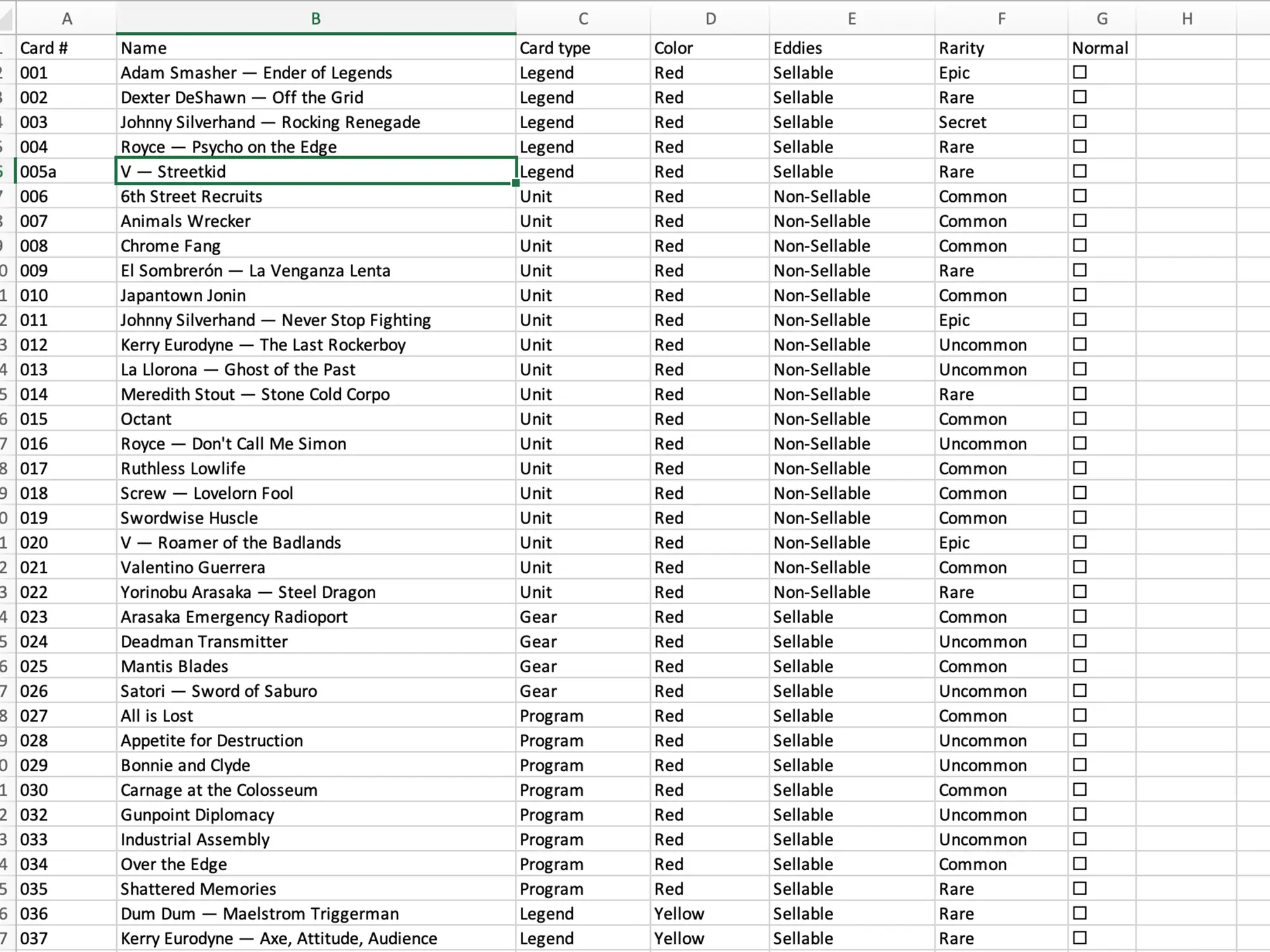
Open any set and go to its checklist. You get one row per card and one column per variant, so a card printed in five parallels shows five boxes on its line. Every card in the set is on the page at once, with no paging, which is exactly what you want when the point is to scan the whole thing. Card names link straight back to the card page if you want the artwork, the market data or the details behind a line. Browse the catalogue.
Hit Print and you get a ready-made PDF: A4, the header row repeated on every page, no app furniture, no margin surprises, and an empty box in every cell that a card was actually printed in. Print the file from any device and it comes out the same every time. Cells for variants that do not exist for that card stay empty, so the sheet still tells you what the set really contains. This is the version to take to a card show, a trade night or a shoebox you are finally sorting out.
Sign in and the checklist fills itself in from your collection: every variant you already own gets a check, and the page tells you how far along you are, for example "Owned 42/399 variants". A single switch, Mark what I own, turns those marks off again whenever you want the blank version back. Nothing is lost either way, it is the same checklist rendered two ways.
On the web checklist the boxes are live. Click an empty box and that exact variant goes straight into your collection, one copy, no form: the tick appears, your owned count moves, and you keep going down the page. A picker above the table shows which collection your ticks land in, and you can switch it at any time. Click a box that is already ticked and the card's full collection editor opens instead, where you can add more copies, set a condition or a serial number, attach photos, or remove it. Un-ticking is never a silent delete: everything you own is edited deliberately, never wiped by a stray click.
The All, Owned and Missing tabs narrow the checklist before you print it. Missing gives you a shopping list for the set: only the cards you do not have yet, in set order, with a box beside each one. Combine it with the blank switch and you have a want list you can fold into a pocket. Owned does the reverse, which is the version to hand someone who wants to know what you can trade. Build a want list.
Export gives you the same checklist as an Excel workbook, a CSV, or a branded image you can post. Unowned cells come out as an empty box in every format, so a spreadsheet you print is still something you can tick. Card names carry links back to their card pages, so a file you send to a trading partner leads them somewhere useful. You can also narrow the columns to just the variants you care about before you export. See what else it does.
With Premium the export picks up a few extra columns. Swap the checks for owned quantities and each cell shows how many copies you hold, which turns the sheet into a trade list or a duplicates list in one step. You can add game-specific attribute columns such as rarity or colour, and an Est. Value column for what the cards are worth. The checklist page itself, printing, and plain export stay free. See Premium.
Yes. The checklist page, printing it as a ready-made PDF, and exporting it as Excel or CSV are all free, with or without an account. The shareable image is free too, though generating it needs a free account. Premium only adds extra columns to the export, such as owned quantities, game attributes and Est. Value.
Yes. A checklist is always the full set: every card in every variant it was printed in, including parallels, inserts and serialised cards. Each variant is its own column, so one card can carry several boxes on its line.
Sign in, open the set checklist and switch to the Missing tab. The page narrows to the cards you do not own yet, and you can print or export that view directly.
That is what it is designed for. Every cell for a card that exists prints as an empty box. If you are signed in and want the boxes empty rather than pre-ticked, turn off the Mark what I own switch before printing.
Yes, on the web checklist. Sign in and click any empty box to add that exact variant to your collection in one click; a picker above the table shows which collection it goes into. Clicking a ticked box opens the card's collection editor for details like condition, serial numbers and photos.
Start your collection, free
No account needed to browse. Create one to track and value your cards.